Amazon A+ Content: modules, image sizes and examples
Amazon A+ Content lets brands swap a plain-text product description for modules of images, text and shoppable comparison charts. Here is who can use it, how Basic, Premium and Brand Story differ, the image sizes Amazon names, the five steps to build it, and example layouts, from Amazon's own seller pages, checked on November 22, 2026.
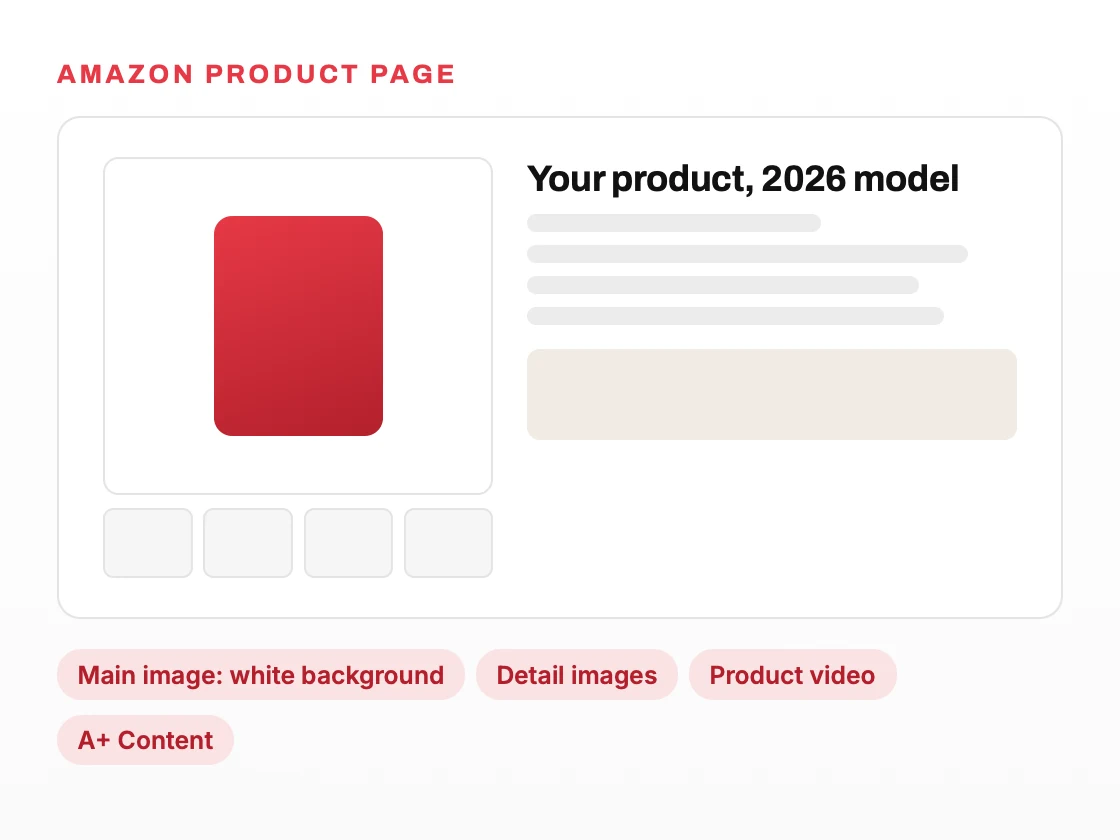
The short answer
You build A+ Content in the A+ Content Manager in Seller Central. It is free for eligible sellers, which on amazon.com means a Professional selling account plus a Brand Representative or Reseller role on a brand enrolled in Brand Registry, or generic products in your catalog. Basic A+ allows up to 5 modules, Premium A+ up to 7, and Brand Story sits in its own section.
Sources: sell.amazon.com, “A+ Content”; Amazon's quick guide “Grow your brand with product listings enhanced by A+ Content” (PDF, version 1.1, linked from sell.amazon.com); sell.amazon.de, Amazon's A+ Content guide for the German store, checked on November 22, 2026. The sales figures come from Amazon's own studies in 2022; Amazon notes that results vary with content quality, price and category.
A+ Content for your product
Who can use Amazon A+ Content
Professional selling account
Amazon's A+ page for the US store asks for a Professional selling account.
Brand Registry or generic products
A role on a brand enrolled in Amazon Brand Registry, or generic products in your catalog.
The right role
If you work for an enrolled brand, the rights owner or an Administrator assigns you the Brand Representative or Reseller role.
Selling on amazon.de? Amazon's guide for the German store is stricter: without Brand Registry, the A+ Content Manager stays locked, and enrollment there requires a trademark registered in the EU.
Sources: sell.amazon.com, “A+ Content” (“Who can use A+ Content?”); sell.amazon.de, A+ Content guide, checked on November 22, 2026.
Basic A+ vs. Premium A+ vs. Brand Story
Basic and Premium replace the product description, and only one of the two can be live on a listing at a time. Brand Story appears separately under “From the brand” and can link to your Brand Store and other products.
| Feature | Basic A+ | Premium A+ |
|---|---|---|
| Max modules per project | 5 | 7 |
| Module types | 14 | 19 |
| Comparison chart | Yes | Yes |
| Video | No | Yes |
| Hotspots | No | Yes |
| Q&A module | No | Yes |
| Gen AI enabled | Yes | Yes |
- Premium A+19
- Basic A+14
- Brand Story4
Source: Amazon's A+ Content quick guide (PDF, version 1.1, linked from sell.amazon.com), checked on November 22, 2026. Brand Story allows up to 19 modules per project.
Amazon's guide recommends Basic if you are just starting or sell simple products, and Premium if shoppers compare similar products or need many details and specs.
Amazon A+ Content image sizes and dimensions
There is no single size. Amazon's quick guide lists Basic as “varied”, Premium as “varied, high-res”, and gives one fixed size, for Brand Story. Amazon's guide for the German store adds minimums for standard modules.
| Content | Size Amazon names | Source |
|---|---|---|
| Brand Story images | 362 × 453 pixels | A+ quick guide |
| Basic and Premium | Varies by module | A+ quick guide |
| Standard modules | At least 970 × 300 pixels | sell.amazon.de |
| Width and resolution | At least 970 pixels wide, 72 DPI | sell.amazon.de |
| File size, Basic A+ | Up to 2 MB per image | sell.amazon.de |
The same guide says over 70% of sessions on many European Amazon stores are on mobile, and advises never to embed text in images, because shoppers can't read it once the image shrinks. Put words in the module's text fields.
Sources: Amazon's A+ Content quick guide (PDF); sell.amazon.de, A+ Content guide, checked on November 22, 2026. That guide's FAQ also names images of up to 970 × 600 pixels for Basic A+. Exact sizes per module from the Seller Central help are summarized on Amazon ads agency for amazon.de.
How to create A+ Content on Amazon, step by step
- Open the managerIn Seller Central, hover over Advertising and select A+ Content Manager.
- Pick a typeSelect Start creating A+ Content, choose the content type, then Add module.
- Fill it, with AI if you likeOn “AI Ready” modules, choose text and image fields and select Generate content.
- Apply ASINsChoose your brand-owned products, then Apply Content.
- Review & submitApproved content appears on the detail pages automatically.
For the AI step, you enter your brand-owned ASIN and Amazon can use insights from your product and top performers in your category to guide the draft. Check every draft before you submit it: claims have to be accurate for the product the customer receives.
Source: sell.amazon.com, “A+ Content” (“How A+ Content works”, steps 1 to 5), checked on November 22, 2026.
Amazon A+ Content examples: three 5-module layouts
These are suggested layouts, not real listings. Each uses the five Basic A+ modules and answers, in order, the questions a shopper still has before buying.
Tool or appliance
- Wide hero image: the product at work
- Three benefits, each with a detail shot
- What's in the box, part by part
- Specs as a table
- Comparison chart of your own models
Skincare or beauty
- Wide hero image: the routine
- Key ingredients in three images
- How to use it in three steps
- Who it's for
- Comparison of your own variants
Furniture or home
- Wide hero image: in a furnished room
- Dimensions next to a person or everyday object
- Material close-up
- Assembly in three steps
- Colors and sizes compared
The gallery above A+ Content follows its own rules; see Amazon product image requirements.
Amazon A+ Content best practices and common mistakes
Text baked into images
Words in the text fields, images that show
The same modules pasted on every product
Modules matched to each product's features
Skipping the mobile preview
Check on mobile before you submit
No Brand Story
Add one: it's free and links to more of your products
Publish and forget
Test two versions with Manage Your Experiments
Amazon also suggests duplicating finished content as a template for product variations or for translations into other Amazon stores, and using reviews and returns to decide what to update.
Sources: sell.amazon.de, A+ Content guide (tips and common mistakes); Amazon's A+ Content quick guide (PDF, best practices), checked on November 22, 2026.
Questions about Amazon A+ Content
What is Amazon A+ Content?
A tool that lets brands add images, videos, custom text placements and shoppable comparison charts to their product detail pages, plus a Brand Story section, according to Amazon.
Is Amazon A+ Content free?
Yes. Amazon says A+ Content is free for sellers who meet the eligibility requirements. On amazon.com that is a Professional selling account with a role on a brand enrolled in Brand Registry, or generic products in your catalog.
What are the Amazon A+ Content image sizes?
Amazon's quick guide gives 362 × 453 pixels for Brand Story images and says sizes for Basic and Premium vary by module. Amazon's guide for the German store names at least 970 × 300 pixels for standard modules and up to 2 MB per image in Basic A+.
What is the difference between Basic and Premium A+ Content?
Basic allows up to 5 modules from 14 module types, with images, text and comparison charts. Premium allows up to 7 modules from 19 types and adds larger images, video, hotspots, carousels and Q&A modules.
Can I use AI to create A+ Content?
Yes. In the A+ Content Manager, modules with an “AI Ready” badge can generate text and image fields from your brand-owned ASIN. Review every draft before you submit it.
How long does A+ Content review take?
Amazon's guide for the German store names a decision within 7 business days, and in another place 7 to 14 business days. If something is rejected, Amazon names the module, so you only fix that one.
A+ Content for your product
Send a link to your product. In a free first call, you see which A+ modules are worth building for it, and then you get a quote.
Anastasia
I'll get back to you personally.